
Can I keep my number when switching to your network?
If you're ready to switch to a new wireless carrier, you’re probably excited to leave behind things like high bills, poor coverage, and hidden fees. But there’s one thing you definitely want to keep—your phone number. After all, updating everyone with a new number can be a hassle.
The good news? You don’t have to! At Infimobile, we make it easy to transfer your number when switching carriers. Wireless providers can’t stop you from keeping it—this process, known as "porting out," is simply a number transfer. And don’t worry, we’re not big on complicated tech jargon—we just focus on making the process smooth and simple. In this blog, we’ll walk you through everything you need to know to transfer your number effortlessly.
What does number porting mean?
Porting your phone number means bringing it with you when you switch carriers—your carrier changes, but your number stays the same. Think of it like swapping cars but keeping your old license plate, so there’s no need to memorize a new one. The best part? Most carriers not only allow number transfers—they actually encourage them!
Here’s a quick and easy guide to port your number to Infimobile.
Step 1 : Log in to Infimobile and purchase your plan with our step-by-step guide.
Step 2 : After purchasing the plan, proceed to the "Activate SIM" section and enter the required details, then select your SIM type—choose Physical SIM if you have one or eSIM if applicable. After that, select "Bring Your Number" to port in your number.
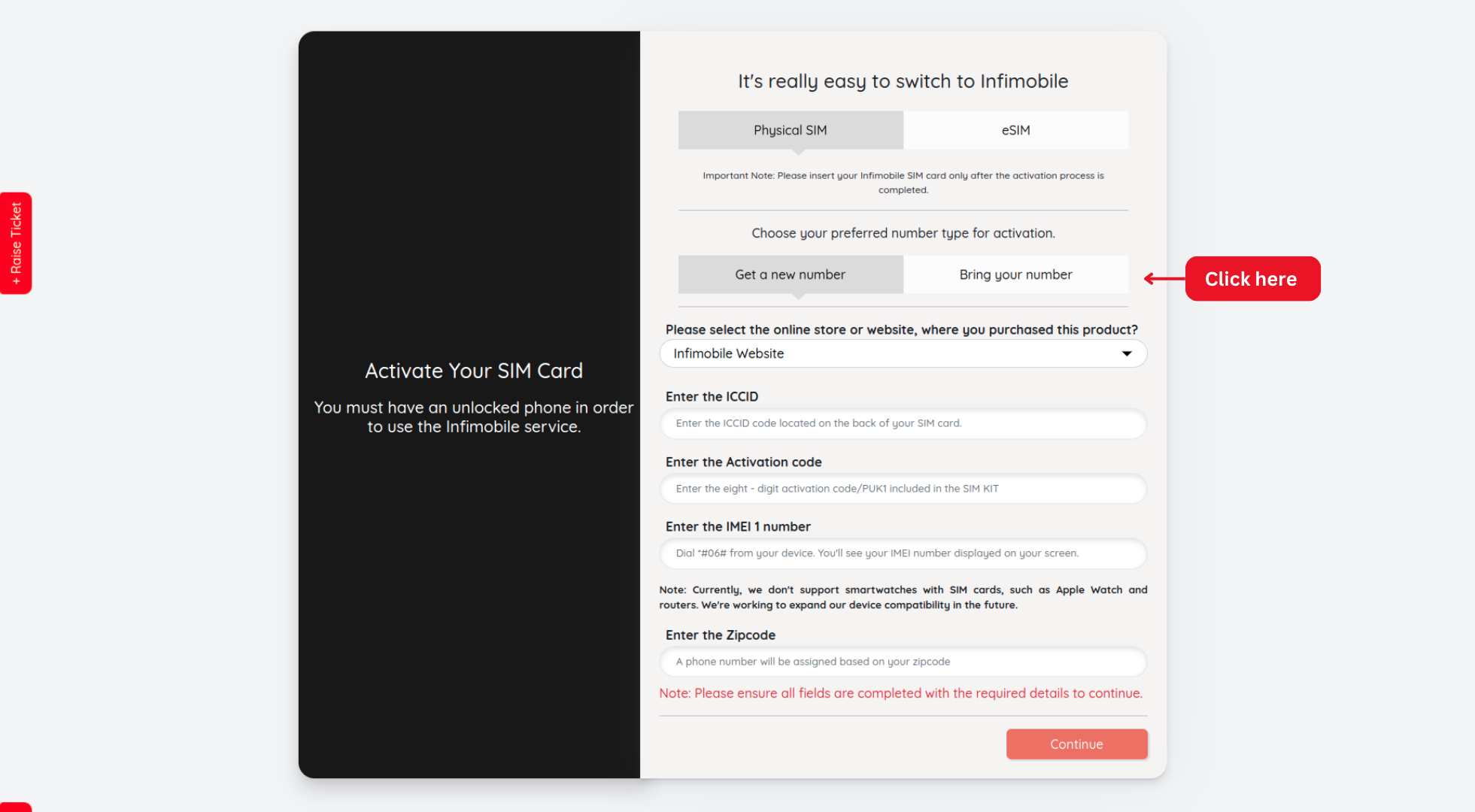
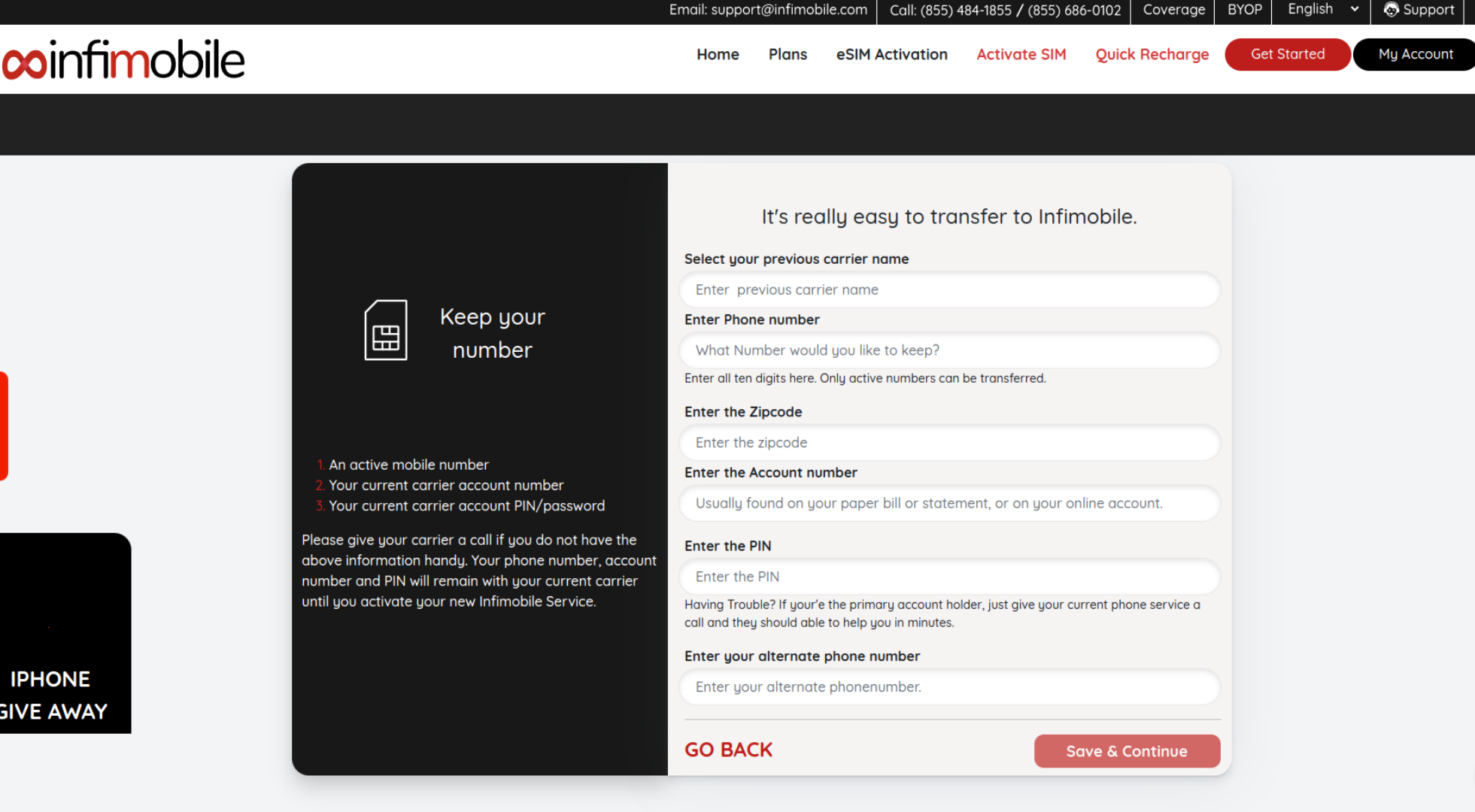
Step 3 : Fill in the required details in the provided fields, ensuring all information is entered correctly.
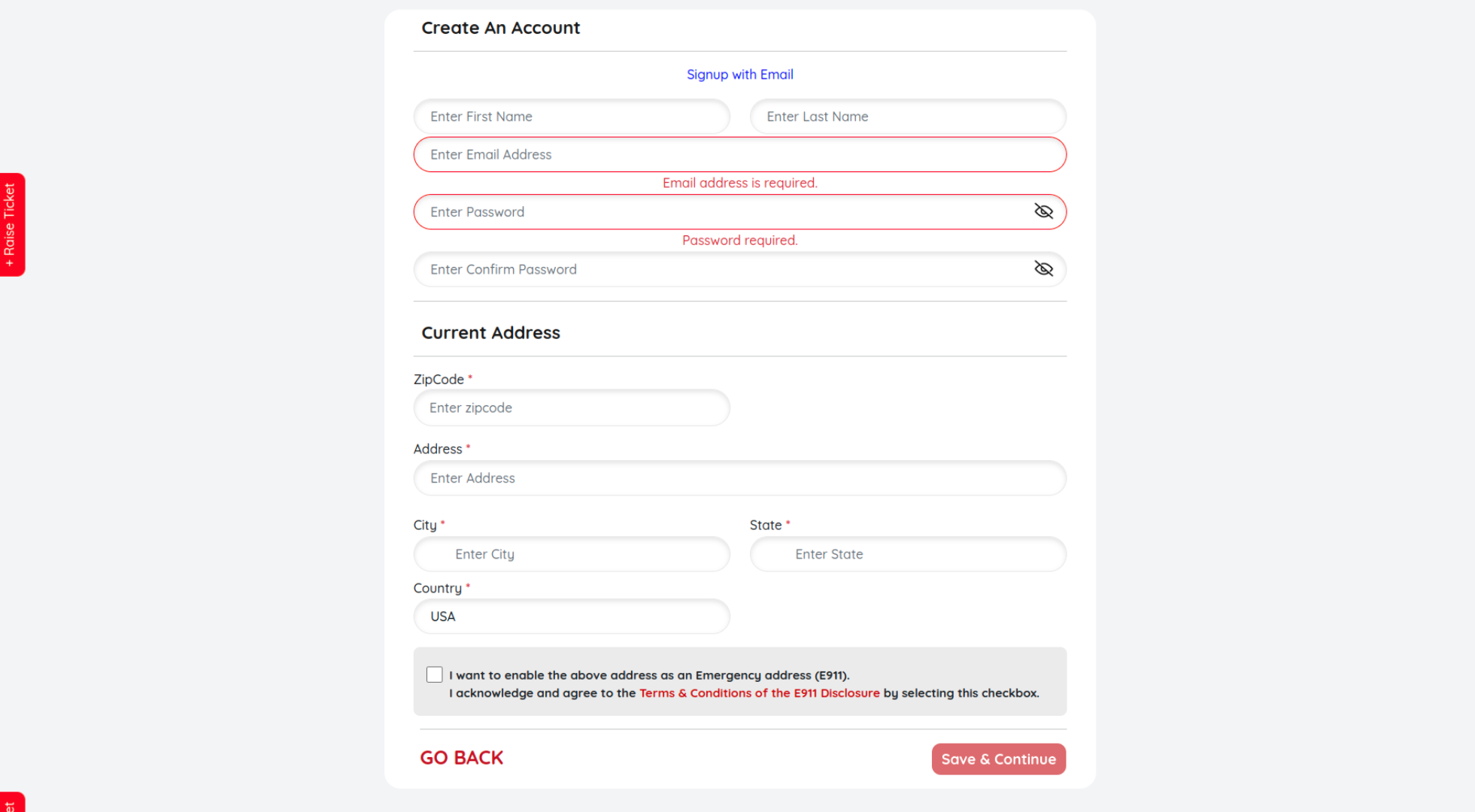
Step 4 : Create your account by entering your email address, setting a secure password, and providing your current address details and click Save and Continue
Step 5 : If you have a referral code, enter it; otherwise, you can skip this step. You may also enable auto-renewal if desired, then click on Activate to proceed.
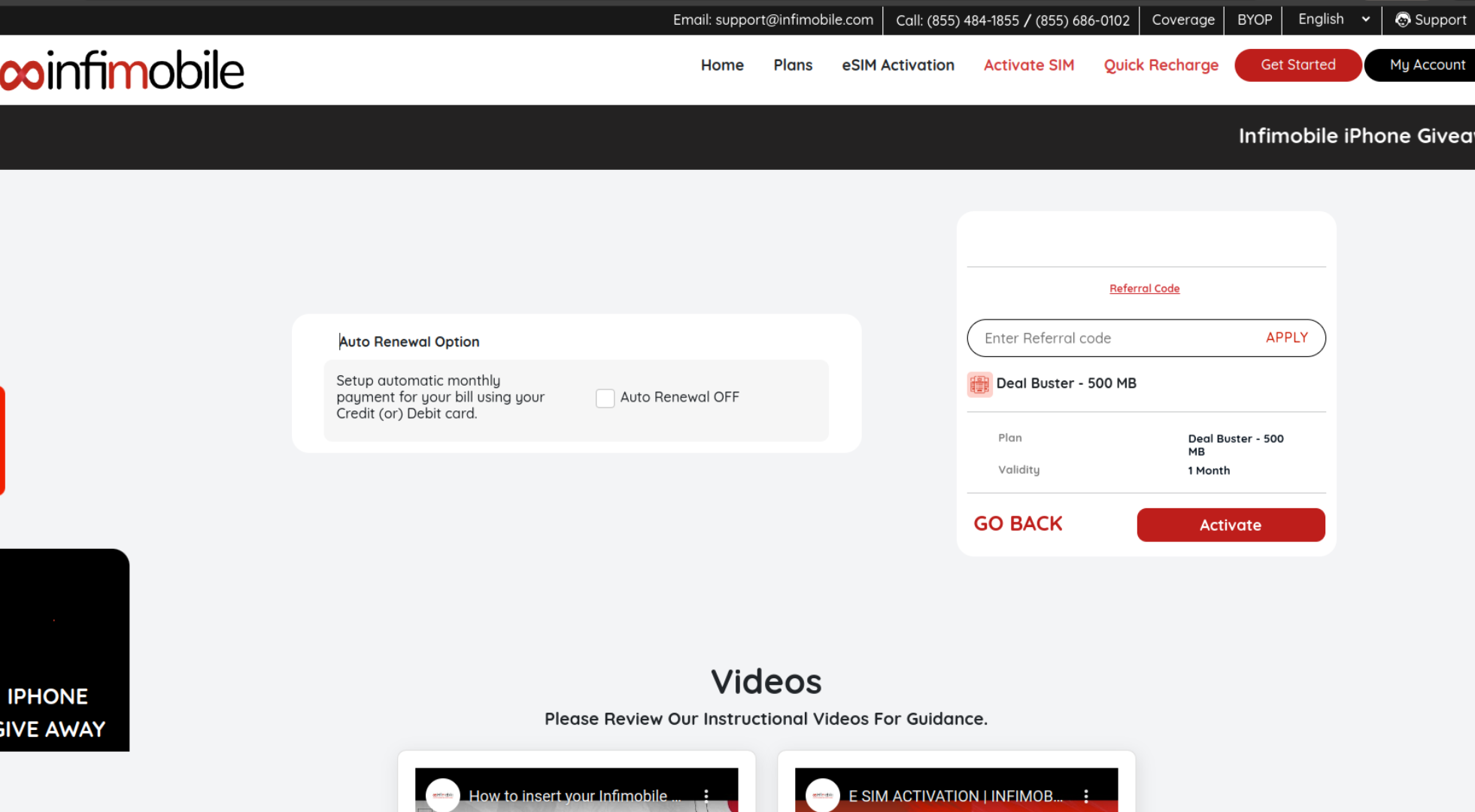
Step 6 : After clicking Activate, your port-in request will be submitted. The completion process may take anywhere from 30 minutes to 48 hours, depending on your previous carrier's transfer policies.
Tips for Keeping Your Number When Switching Phone Carriers
There are a few important things you’ll want to keep in mind when you’re planning to switch from your current wireless carrier to a new one if you want to keep your phone number.
Ensure that your phone is unlocked and compatible with your new carrier.
If you're getting a new phone from your carrier, you can skip this step. But if you're bringing your own phone (BYOP), make sure it's unlocked before porting. Checking this in advance is crucial, as unlocking it after switching carriers can be more difficult.
Keep your current service active until your number transfer is complete.
The most crucial step: Don’t cancel your current service before the transfer is complete. If you do, you’ll lose your number, and it may return to its original carrier permanently.
Make sure you have removed all type of protections to port your number successfully.
Your previous carrier may have enabled protections like fraud protection and service protection to prevent unauthorized SIM swaps and safeguard your data.
Make sure you have your current account number and transfer PIN ready.
To transfer your number, you’ll need your account number and number transfer PIN from your current carrier. This PIN may be called an account PIN or porting PIN and is sometimes temporary. It's best to request it when you're ready to start the transfer, as you may need to contact your carrier to obtain it.
Ensure you have entered the correct ZIP code for a successful port-in.
Make sure you enter the correct ZIP code that is compatible with our service. If your current ZIP code isn’t supported, try using the nearest ZIP codes to complete the port-in process.
Need Help?
If you encounter any issues during the activation process, feel free to reach out to our customer support (855) 484-1855 / (855) 686-0102 or email support@infimobile.com. for assistance.