
How to Get Started with Infimobile: A Step-by-Step Guide
Welcome to Infimobile! We’re here to help you get set up on America’s largest 5G network with coast-to-coast coverage. Our prepaid phone plans offer lightning-fast 5G speeds, unlimited voice, and data services tailored to your needs. Let’s walk you through the process of purchasing your Infimobile SIM in just a few easy steps.
Step 1: Choose Your Plan
Start by selecting a plan that fits your needs. We offer a variety of prepaid plans, from light data options to unlimited plans.
- Visit the Plans page (https://www.infimobile.com/plans) on our website.
- Browse the available plans and click “View Details” on the plan that works best for you.
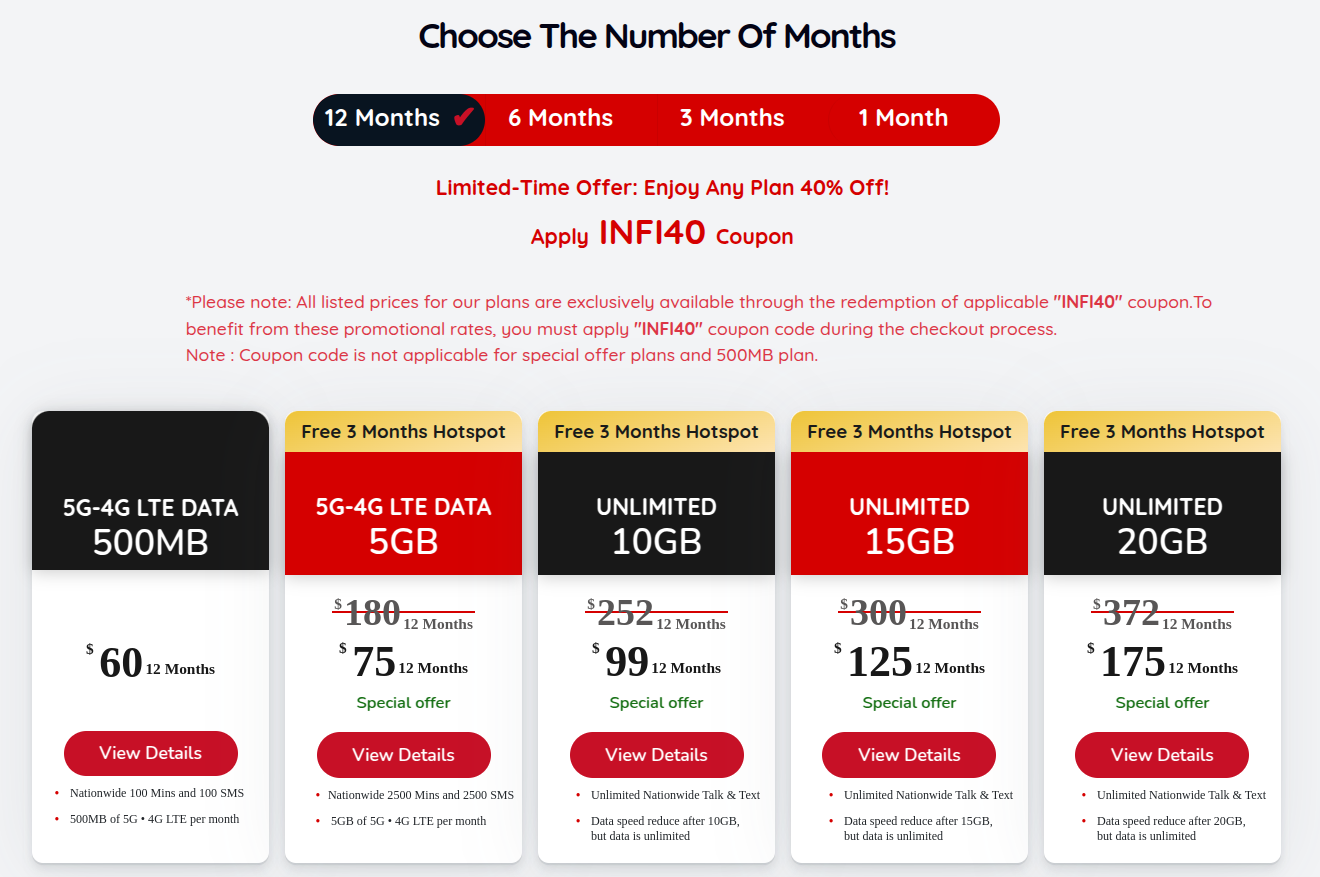
Step 2: Check Your Device Eligibility and Select Your SIM
Once you click “View Details” on your chosen plan, you’ll be taken to the plan details page. Here, you can select your SIM type and verify your device’s eligibility.
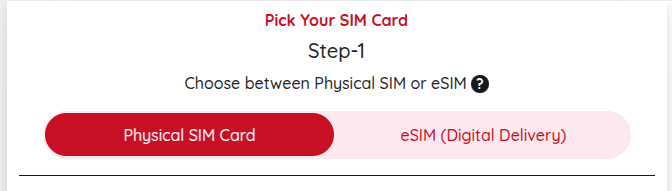
- Choose your SIM type:
- Physical SIM Card: Delivered to your address.
- eSIM (Digital Delivery): Instant activation for compatible devices.
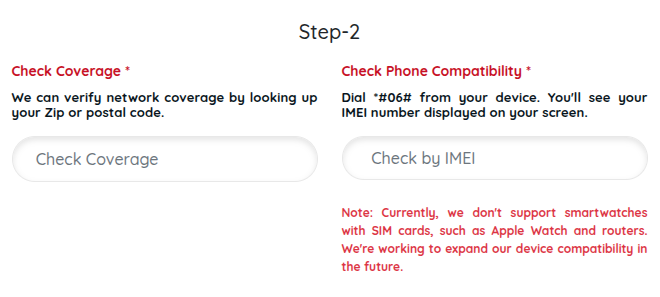
- Check your device eligibility:
- Network Coverage: Use the Coverage Checker to confirm 4G and 5G availability in your area by entering your ZIP or postal code. We run on T-Mobile’s nationwide network, so you’re covered coast-to-coast!
- Phone Compatibility: Verify that your device supports 5G, 4G LTE, and VoLTE by entering your IMEI number (dial *#06# to find it). Most modern phones are compatible, but you can double-check using the Compatibility Tool. Note: We currently don’t support smartwatches or Apple Watches with SIM cards, but we’re working on expanding compatibility.
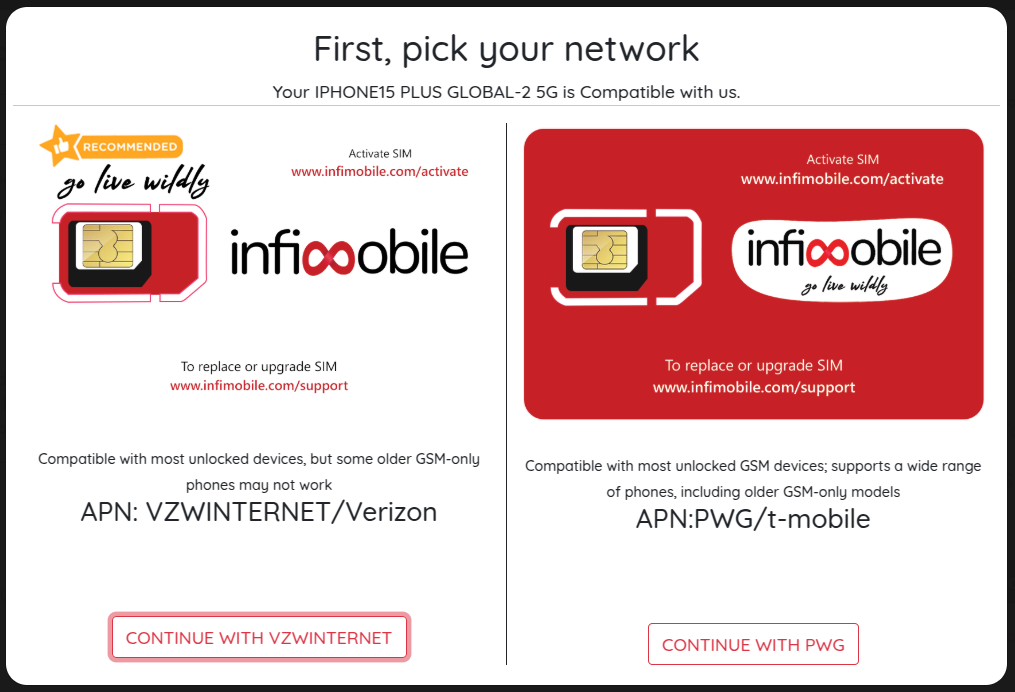
- Select your network:
- If your device is eligible, you’ll see an option to choose your network type (Verizon or T-Mobile).
- If there’s an issue with the network, you’ll be notified with troubleshooting steps.
Step 3: Choose Add-Ons and Add to Cart
After confirming your device eligibility and network, you can customize your plan with add-ons and add it to your cart.
- Select your plan duration (e.g., 1 month, 3 months, 6 months, or 12 months).
- Choose your add-ons:
- Auto-Renewal: Enroll in auto-renewal to ensure uninterrupted service.
- Hotspot: Add hotspot to share your data connection with other devices.
- International Calling: Add international calling for unlimited calls to over 85+ countries.
- Click “Add to Cart” to proceed.
Step 4: Complete Registration
Now, let’s set up your account to proceed with your order.
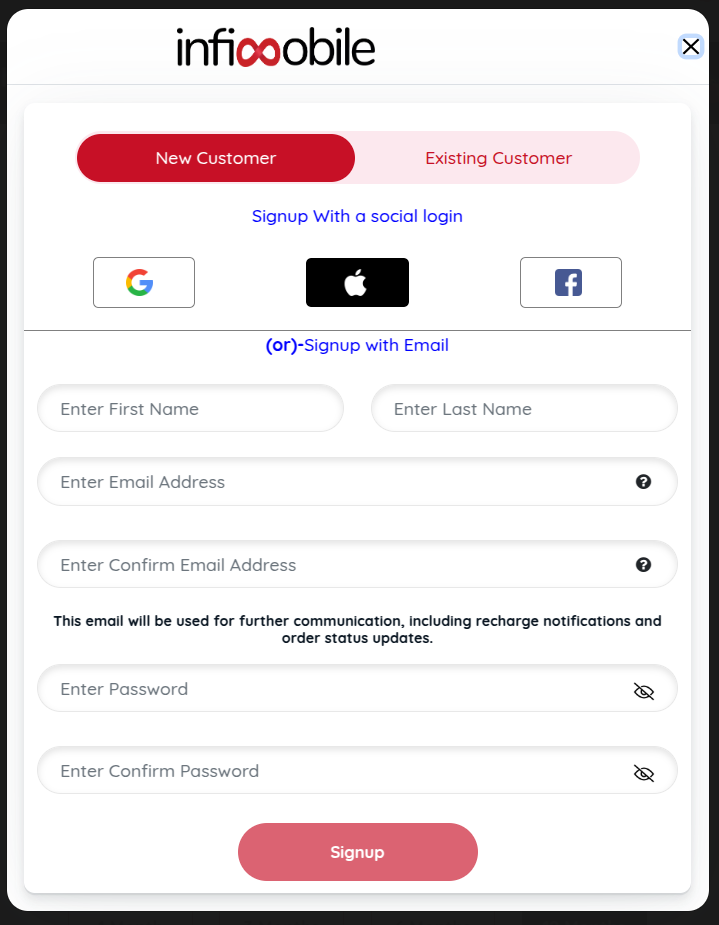
- Sign up for an account:
- Use a social login (Google, Apple, or Facebook) for quick signup.
- Or sign up with your email by entering your first name, last name, email, and password, then confirming your email and password.
- This email will be used for order updates and notifications.
Step 5: Enter Shipping Details, Complete Payment, and Receive Order Details
Let’s finalize your order by providing your shipping details and completing the payment.
- Enter your shipping details:
- Provide the address where you’d like your Infimobile SIM card to be delivered, including your zip code, address, city, state, and country.
- If you chose an eSIM, you’ll skip this step as it’s digitally delivered.
- Billing Address: Check the box if your billing address is the same as your shipping address, or enter a different billing address if needed.
- Apply a promo code (optional): If you have a promo code, enter it in the provided field to apply any applicable benefits.
- Enter your payment details:
- Provide your card number, expiry date, and CVC for secure payment via Stripe. We accept most major credit and debit cards (MasterCard, Visa, Discover, American Express).
- Review your order: Check the order summary to ensure everything looks correct, including your plan, add-ons, and shipping details.
- Click “Place Order” to complete your purchase.
- Receive your order details: After payment, you’ll receive a confirmation with your order details, including a tracking link for your SIM (if you chose a physical SIM).