
How to Select Your Default Number on a Dual SIM Smartphone
To set a primary phone number when using two phone numbers on a single device (via dual SIM or eSIM), follow these steps for Android and iPhone. This ensures your preferred number is used by default for calls, texts, or data.
For Android
Most Android devices with dual SIM support allow you to set a primary number for calls, texts, and data. Here's how:
Open Settings:
Go to the Settings app on your Android device.
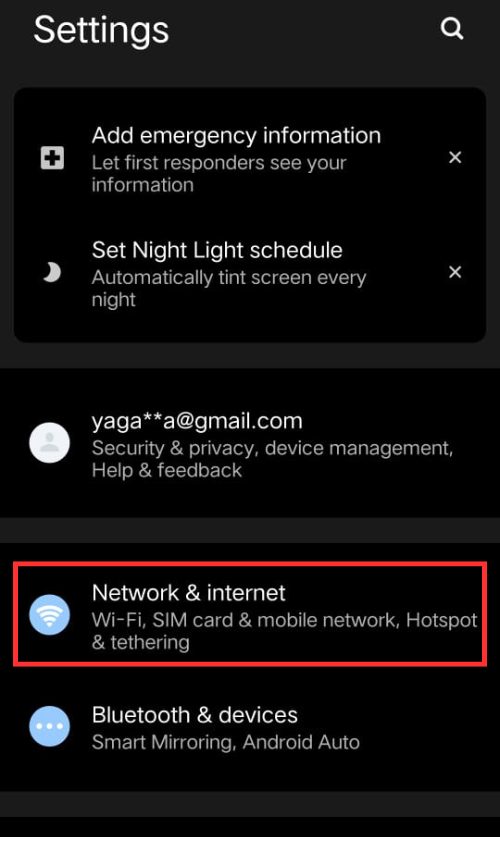
Navigate to Network & Internet:
Tap Network & internet or Connections (varies by device).
Select SIM card manager or Mobile network > SIM cards.
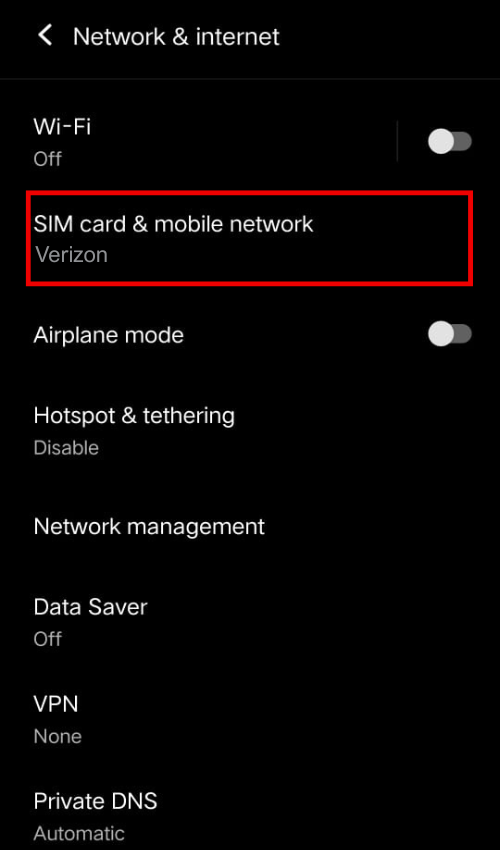
Set Default Line:
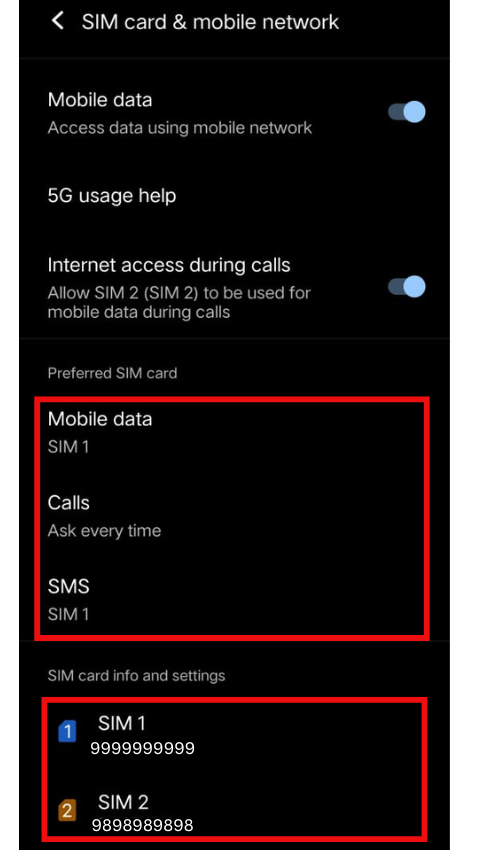
You’ll see both SIMs listed (e.g., SIM 1 and SIM 2, or labeled as Primary/Secondary).
Tap Calls, SMS , or Mobile data to choose which SIM to use by default.
Select the SIM you want as primary for each function (e.g., SIM 1 for calls, SIM 2 for data).
Assign to Contacts (Optional):
Open the Contacts app.
Select a contact, tap Edit, and choose the preferred number for that contact.
Some Android devices allow you to assign a default SIM per contact in Settings > SIM card manager > Preferred SIM for contacts.
Confirm Settings:
When making a call or sending a text, your phone may prompt you to choose a SIM if not set. To avoid this, ensure defaults are set in the SIM card manager.
Check the status bar for icons indicating which SIM is active (e.g., signal bars with SIM 1 or SIM 2).
Note: Steps may vary slightly depending on the Android version or manufacturer (e.g., Samsung, Google Pixel). For Samsung, go to Settings > Connections > SIM manager. For Google Pixel, check Settings > Network & internet > SIMs.
For iPhone
iPhones (iPhone XR, XS, 11, 12, 13, 14, and later) support dual SIM (physical SIM + eSIM or dual eSIM). Here’s how to set the primary number:
1.Open Settings:
Go to the Settings app.
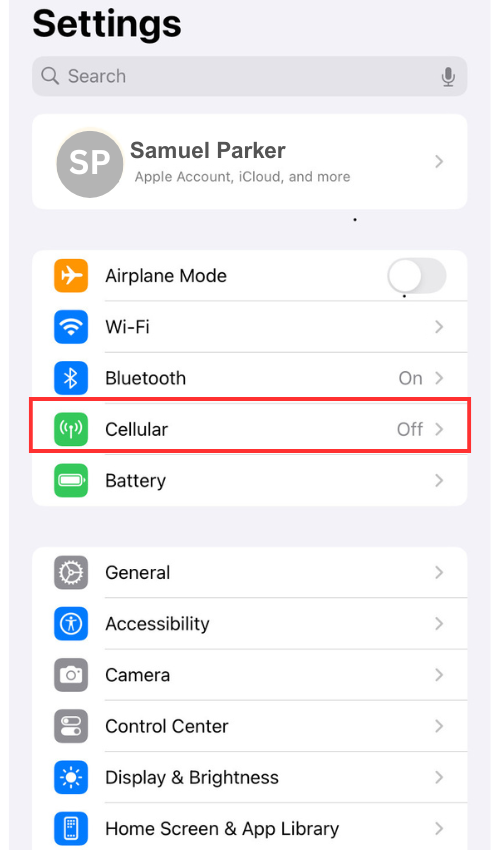
2.Navigate to Cellular :
Tap Cellular (or Mobile Data in some regions).
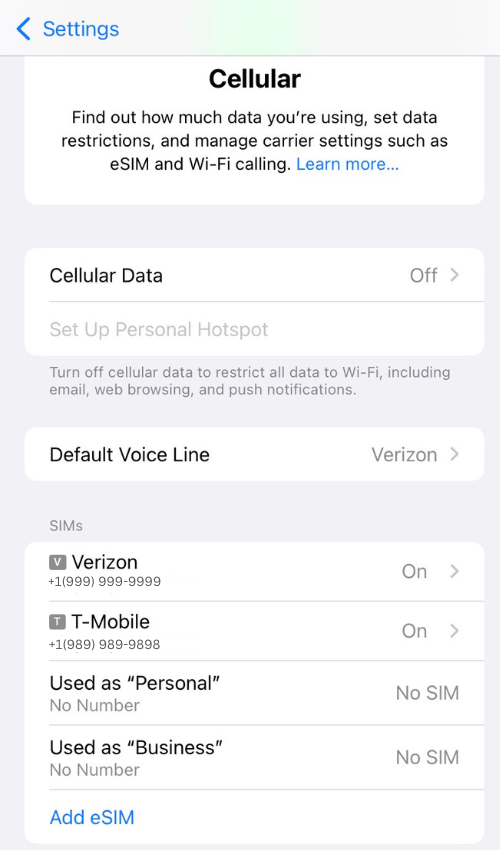
Both lines will appear under Cellular Plans (e.g., Primary, Secondary, or custom labels like Business/Personal). You can choose which number you want to use as your primary or secondary line.
3.Set Default Line:
Tap Default Voice Line to choose the primary number for calls and iMessage/SMS.
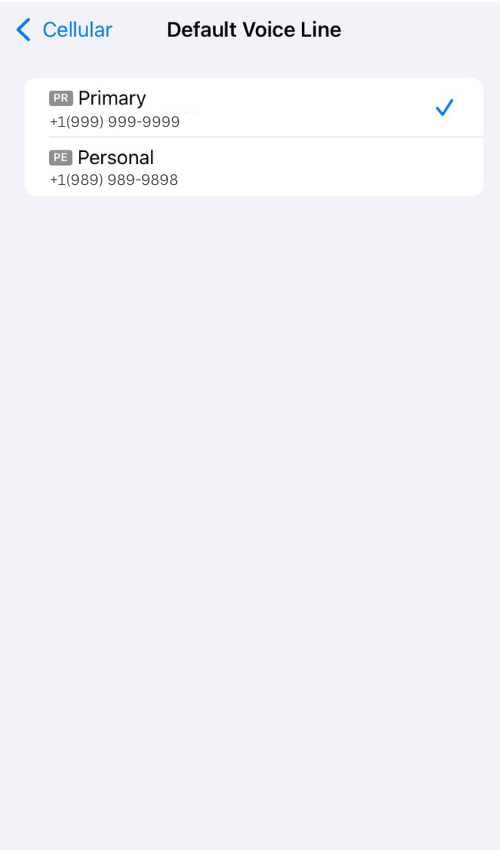
Tap Cellular Data to select the primary line for data (only one line can use cellular data at a time).
If you want to switch data automatically, enable Allow Cellular Data Switching.
Label Plans (Optional):
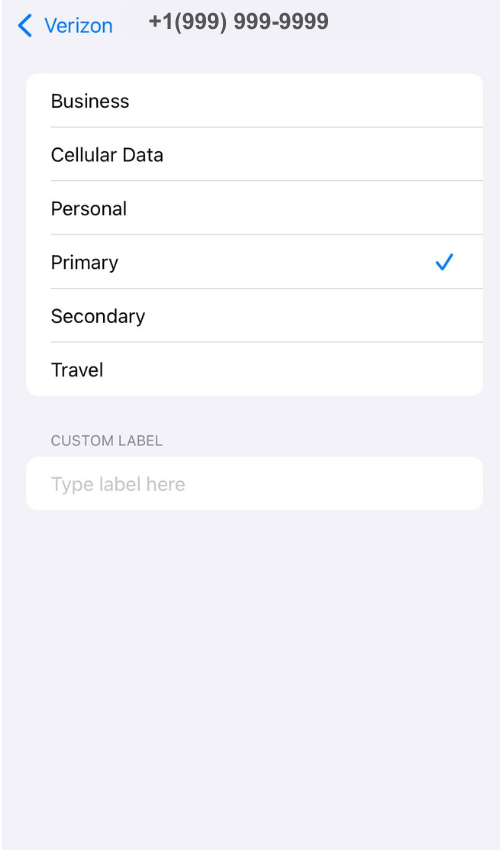
Tap a plan (e.g., Secondary), then Cellular Plan Label.
Choose a label (e.g., Primary, Personal) or enter a custom one to identify each line. This helps when selecting numbers for calls/texts.
Assign to Contacts (Optional):
Open the Contacts app, select a contact, and tap Edit.
Tap the default label next to the phone number or email.
Choose the preferred line for that contact. This ensures calls/texts to that contact use the selected number.
Using the Lines:
When calling, the default line is used unless specified. To switch, tap the current line at the top of the call screen and select the other number.
For texts, tap the From line in the Messages app to switch numbers.
Incoming calls/texts show an icon with the first letter of the line’s label (e.g., “P” for Primary, “S” for Secondary).
Note: If you’re on a call with one line and Wi-Fi calling is off, the other line may show “No Service,” and incoming calls go to voicemail unless Allow Cellular Data Switching is enabled.
Using VoIP Apps (Alternative Method)
If you’re using a VoIP service (e.g., Google Voice, OpenPhone) for a second number instead of a dual SIM, you can set the primary number within the app:
Google Voice: Download the app, sign in, and go to Settings > Calls > Make and receive calls to set the default number. You can choose your Google Voice number or your primary SIM for outgoing calls.
OpenPhone: After signing up, select your preferred number during setup. Use the app to toggle between numbers for calls/texts. The app shows which number is active for outgoing communication.