
Am I Allowed to Modify My Plan Mid-Month and Get a Refund?
You can switch your Infimobile plan mid-month to a new plan tailored to your needs, such as one with more data or different features. Charges will apply only for the days used in your current plan’s billing cycle, and the unused portion will be refunded within 5-8 business days due to necessary tax allocation adjustments. Any unused data from your existing plan will automatically transfer to your new plan, ensuring no loss of data. This change can be made easily through your Infimobile account management portal with immediate effect.
Here's how you can modify your plan:
Step 1 :Sign in to your Infimobile account and navigate to the Quick Recharge section and input your mobile number twice to confirm.
Step 2 :After entering your mobile number, your current plan details will appear and You’ll see six categories .
Renew /Upgrade Plan
Enroll in Auto Renewal
Purchase Data Add-On
Load Wallet
Enable International calling
Enable Hotspot
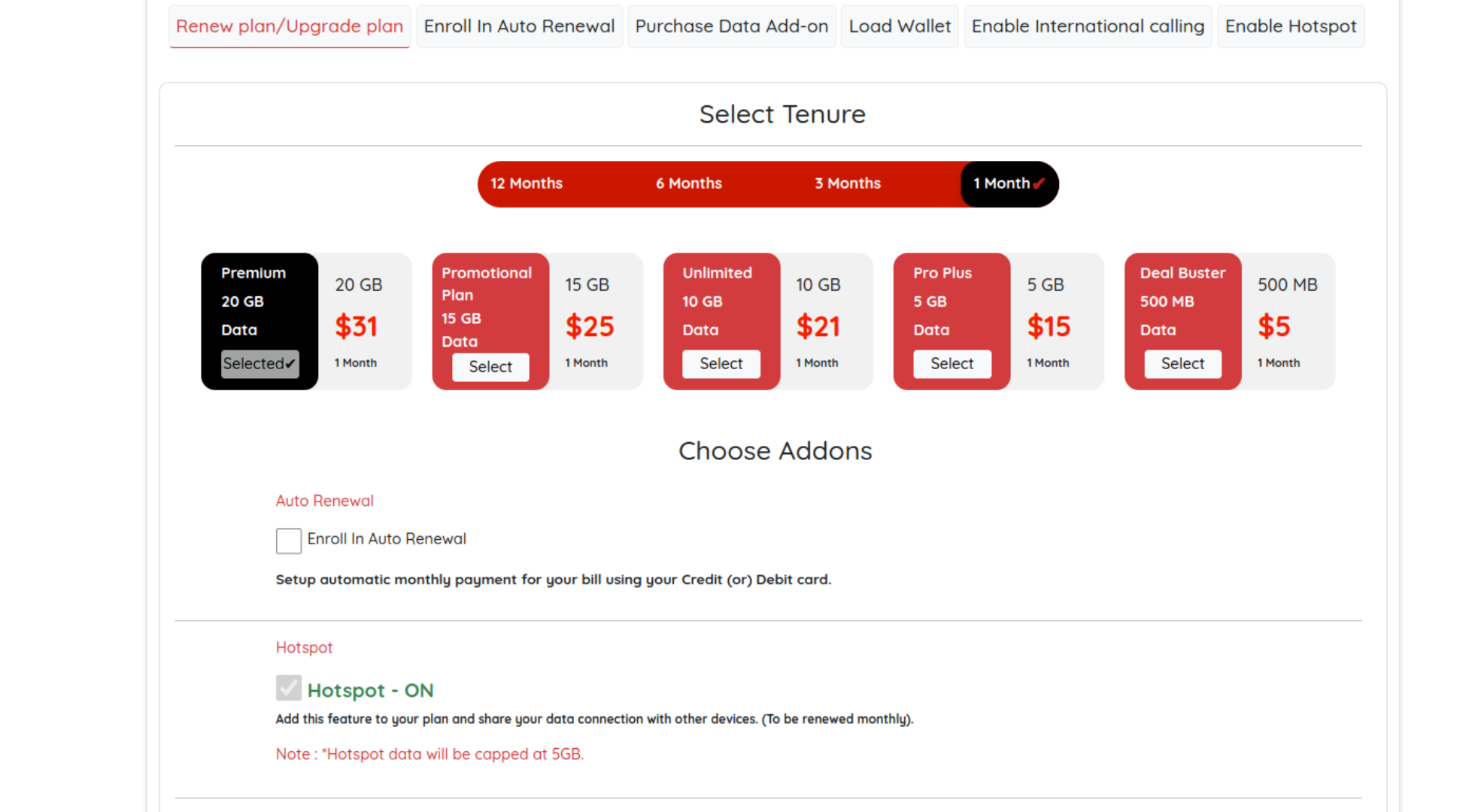
Step 3 :Visit the Renew/Upgrade Plan section in your Infimobile account. You’ll find a range of plan options—pick a premium plan and select your desired tenure. If you don’t choose a new plan, your existing plan will be upgraded automatically by default..
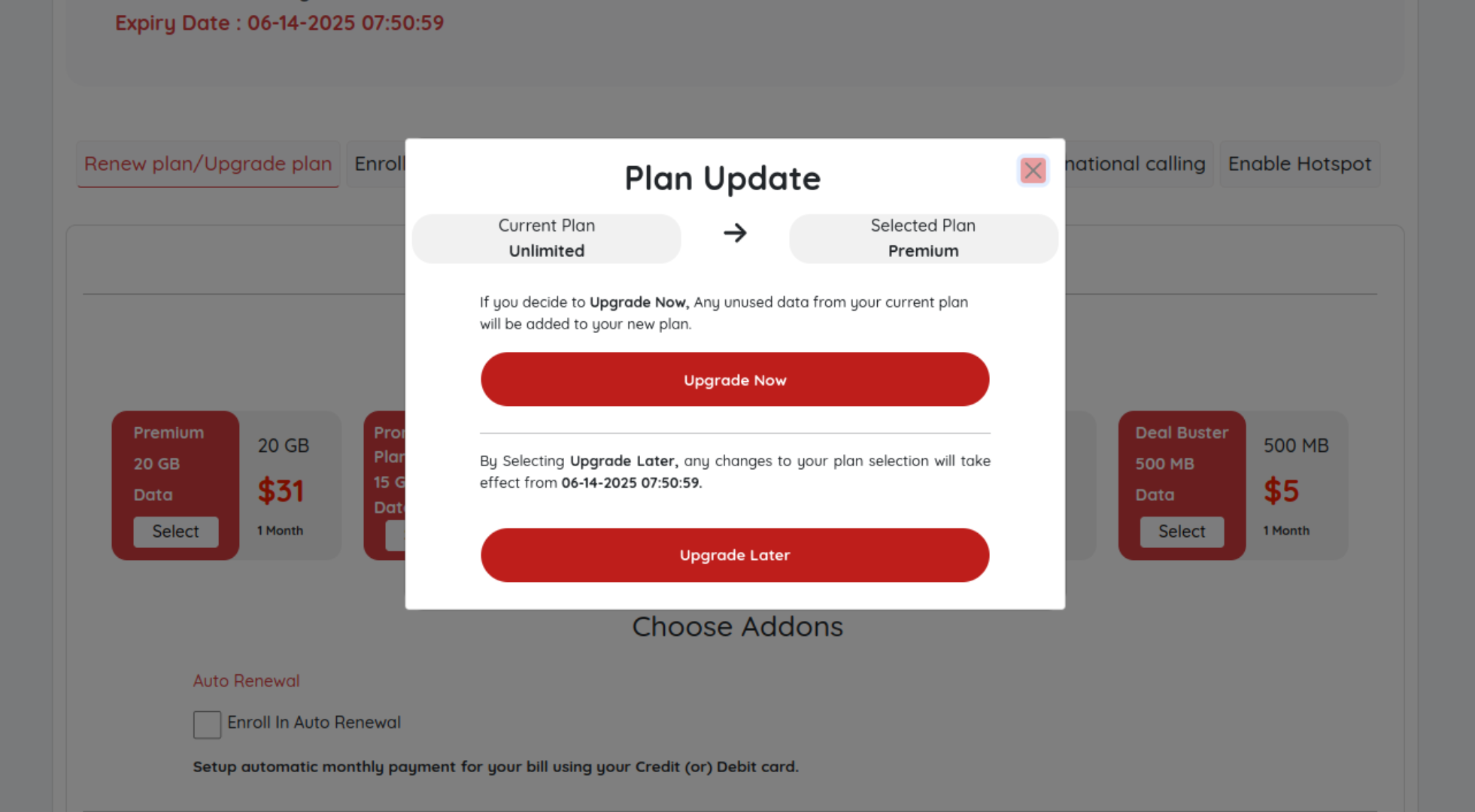
Step 4: Plan Upgrade Options
Upgrade Now:
Immediately switches your Infimobile plan to a new plan. Charges apply for the used portion of your current plan, with the unused portion refunded within 5-8 business days due to tax adjustments. Unused data carries over to the new plan.Upgrade Later:
Schedules your plan upgrade to begin after your current plan’s term ends, with no refunds issued.
Step 5 :Plan Continuity and Add-Ons
Plan Renewal:
If you want to use your Infimobile plan without interruption, choose auto-renewal to keep your service active.Hotspot Access:
If you’d like to share data with devices, select hotspot access during account management for an additional $5, added to your plan.
Step 6: Please provide your billing address and enter your card details to complete the payment process.
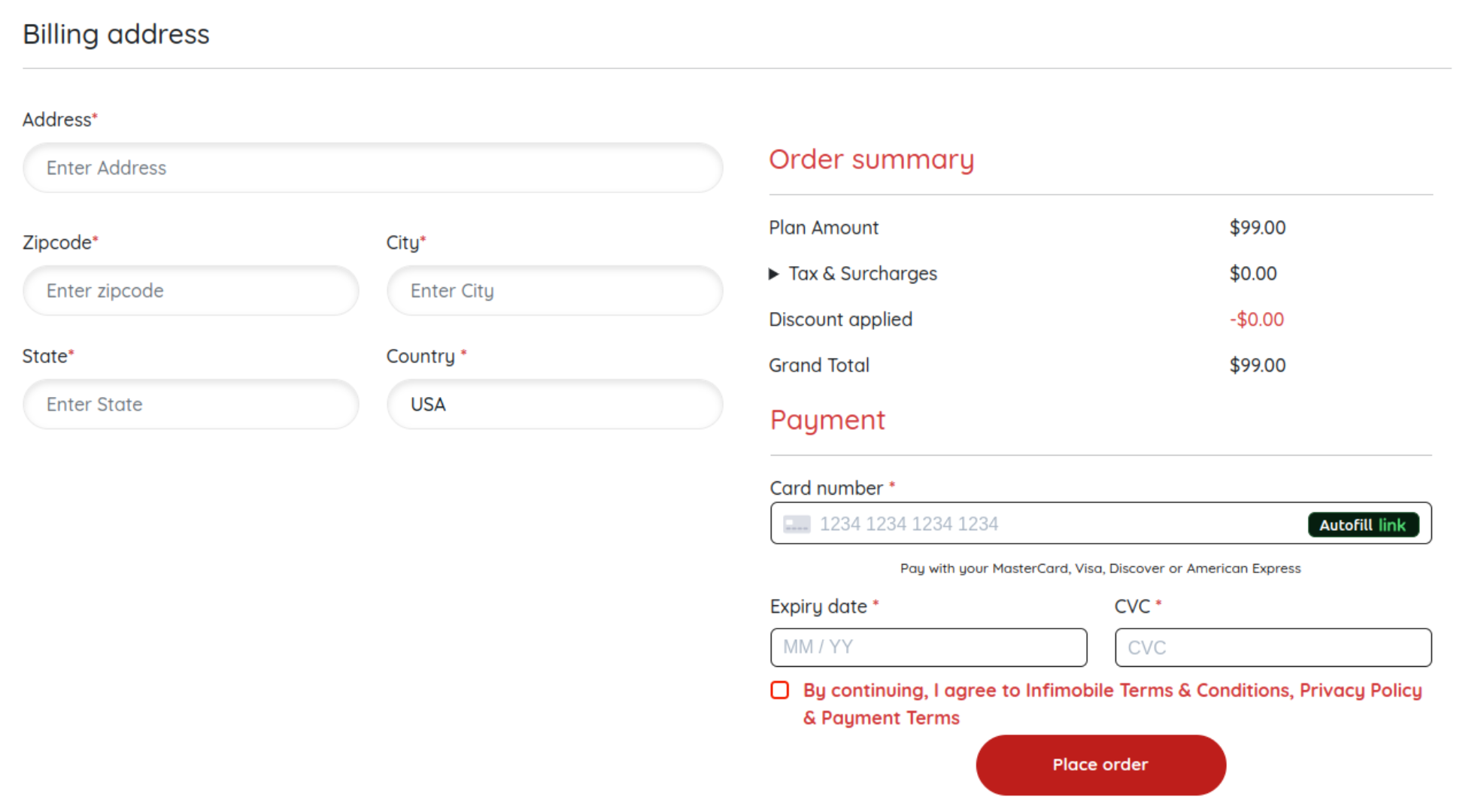
Step 7: Once the payment is completed, the new plan will be added to your queue and will automatically activate after your current plan expires.