
Is WiFi calling supported and how do I enable it?
Stay connected even in areas with weak cellular signals! Infimobile supports WiFi calling, allowing you to make and receive calls and texts over a WiFi network. This guide explains how to enable WiFi calling based on your service type—Verizon or T-Mobile —and ensures you’re set up for seamless communication.
Supported Services:
Infimobile operates on Verizon and T-Mobile networks, with WiFi calling available for both.
Verizon Users: WiFi calling is automatically enabled for Verizon network users, requiring no additional setup. Just connect to a WiFi network, and your device will use it for calls when cellular signal is weak.
T-Mobile Users: For T-Mobile network users, WiFi calling must be manually enabled through your Infimobile account. Follow these steps:
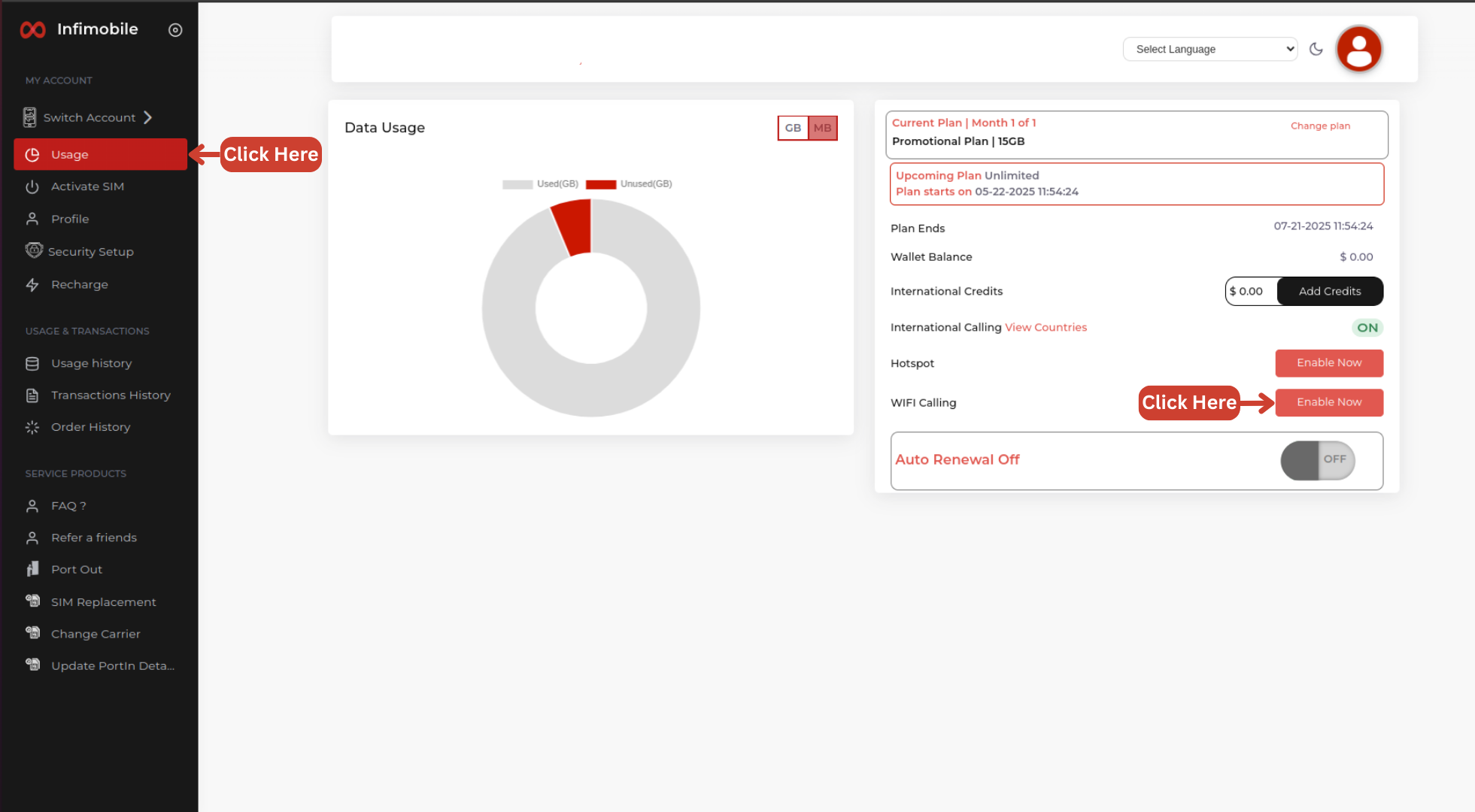
Log In: Visit infimobile.com, go to “My Account,” and sign in with your credentials.
Navigate to Usage: From your account dashboard, head to the “My Usage” section, where you’ll find the WiFi calling option. Click “Enable Now.”
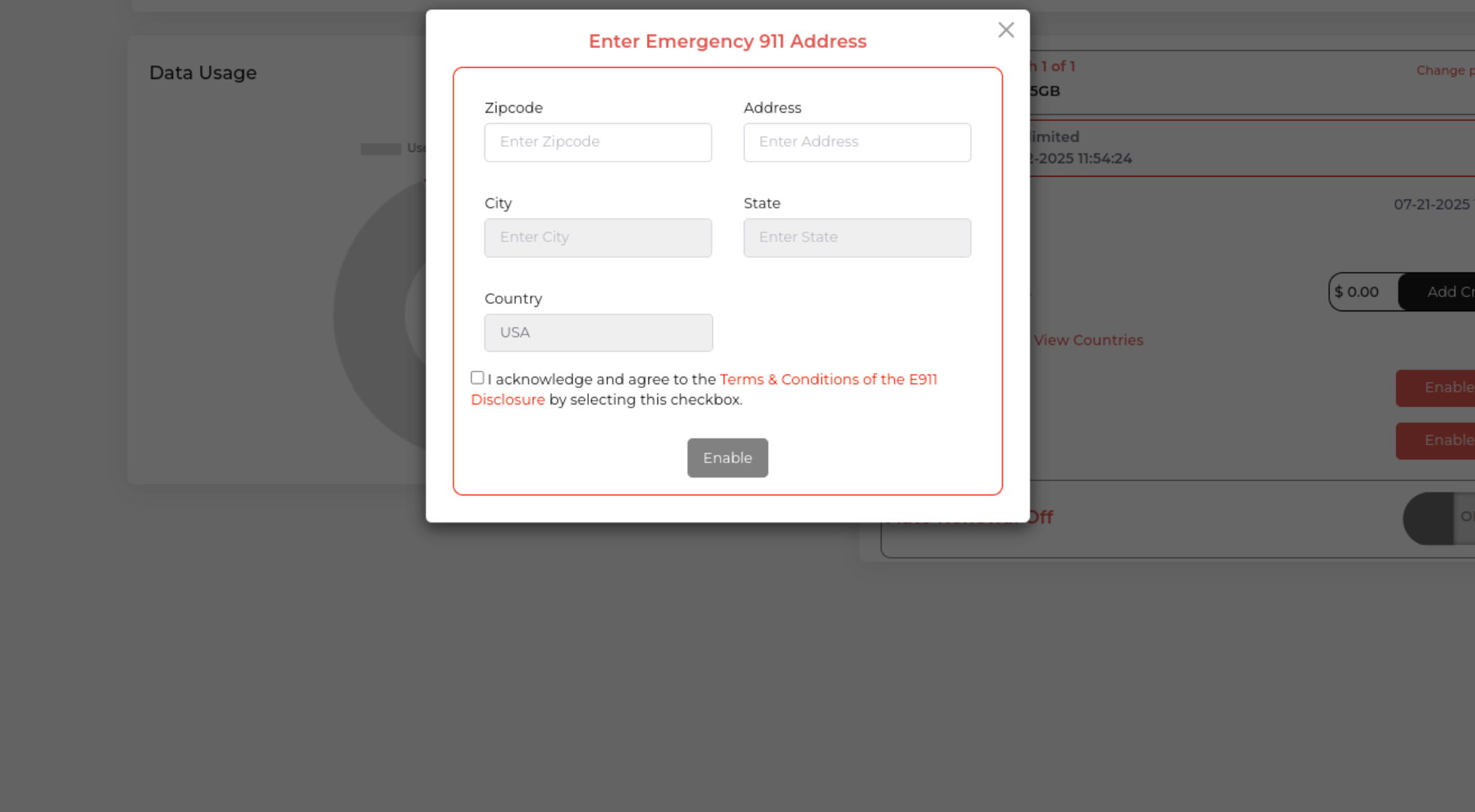
Enter Emergency 911 Address: Input your residential address and area zip code as requested, then click “Submit.” After processing, WiFi calling will be enabled on your plan.
Benefits: WiFi calling ensures clear calls and reliable texting in low-signal areas, like basements or rural locations, using any WiFi network.
Check your device settings to confirm WiFi calling is toggled on (typically under Settings > Phone > WiFi Calling for iPhone or Settings > Network & Internet > WiFi Calling for Android).
With Infimobile’s easy setup, stay connected wherever WiFi is available! For assistance, contact our 24/7 support team.