
How do I enable Two-Factor Authentication (2FA) for my Infimobile account?
Two-factor authentication (2FA) makes your accounts safer by adding a second step, like a code sent to your phone, beyond just a password. It stops strangers from getting in, even if they know your password, and keeps pretenders out since it needs something only you have. It also helps avoid unused SIM swaps and fraud activities, giving you extra protection so you can relax, knowing your stuff is secure.
To enable two-factor authentication (2FA) for your Infimobile account, follow these simple steps:
Step 1 : Sign in to your Infimobile account.
Step 2 : Go to the "Security Setup" area, which includes:
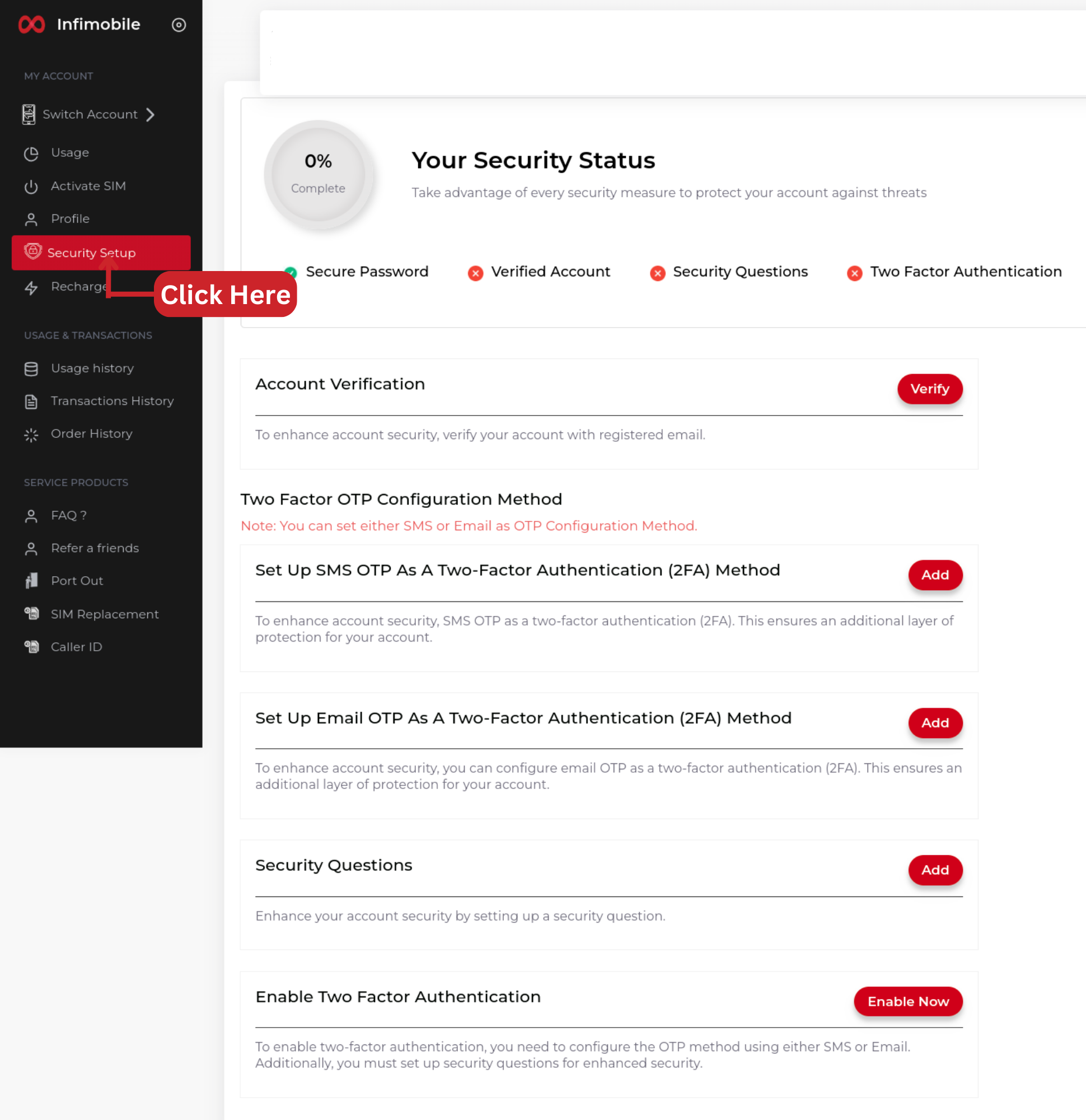
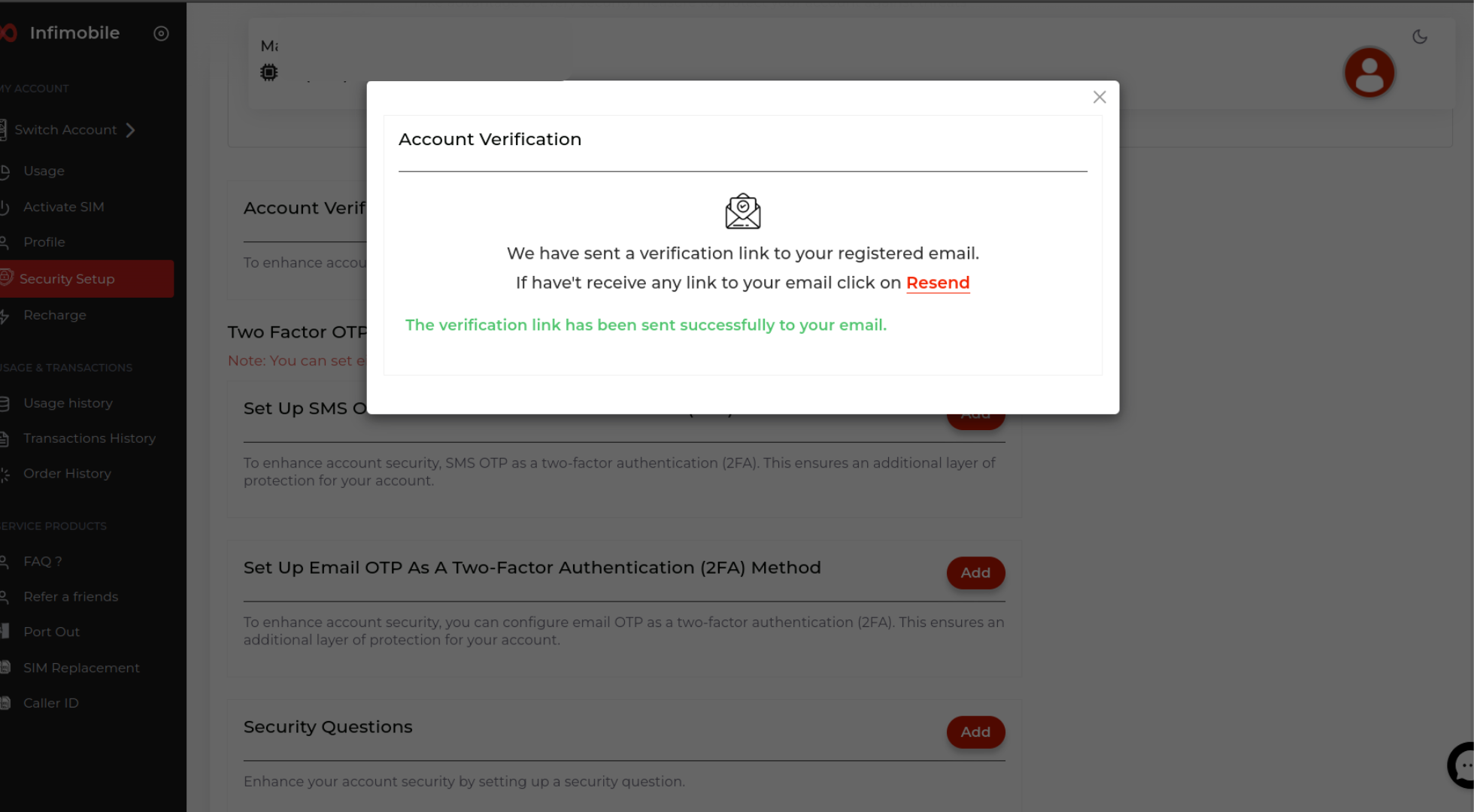
Step 3 : Account Verification : Click the "Verify" button. A link will be sent to your registered account—open it and click "Verify Account" to complete the verification process.
Two-Factor OTP Configuration Method
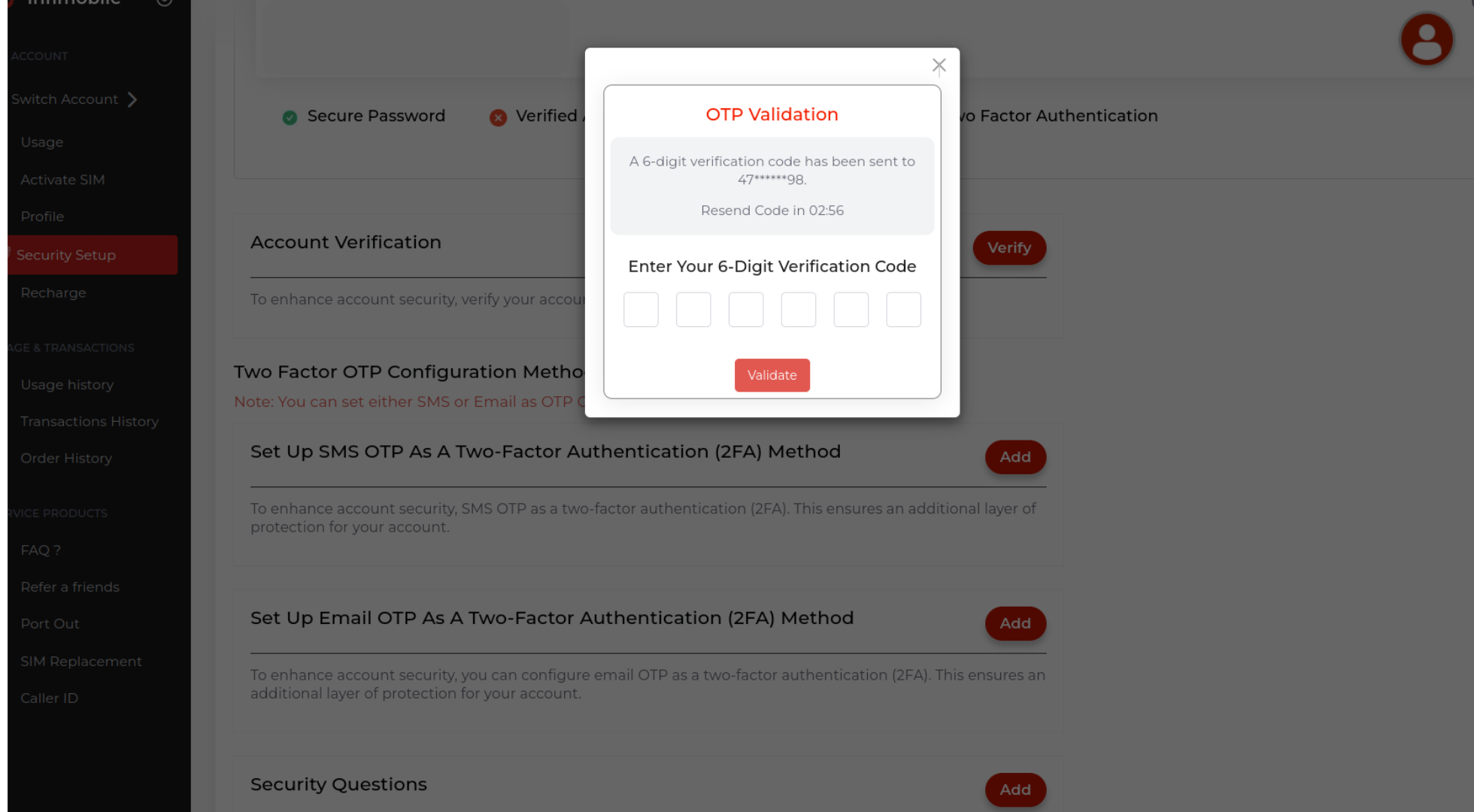
Set Up SMS OTP as Two-Factor Authentication (2FA): Press "Verify," and a one-time password (OTP) will be sent to your registered mobile number. Then, enter the OTP to complete the process.
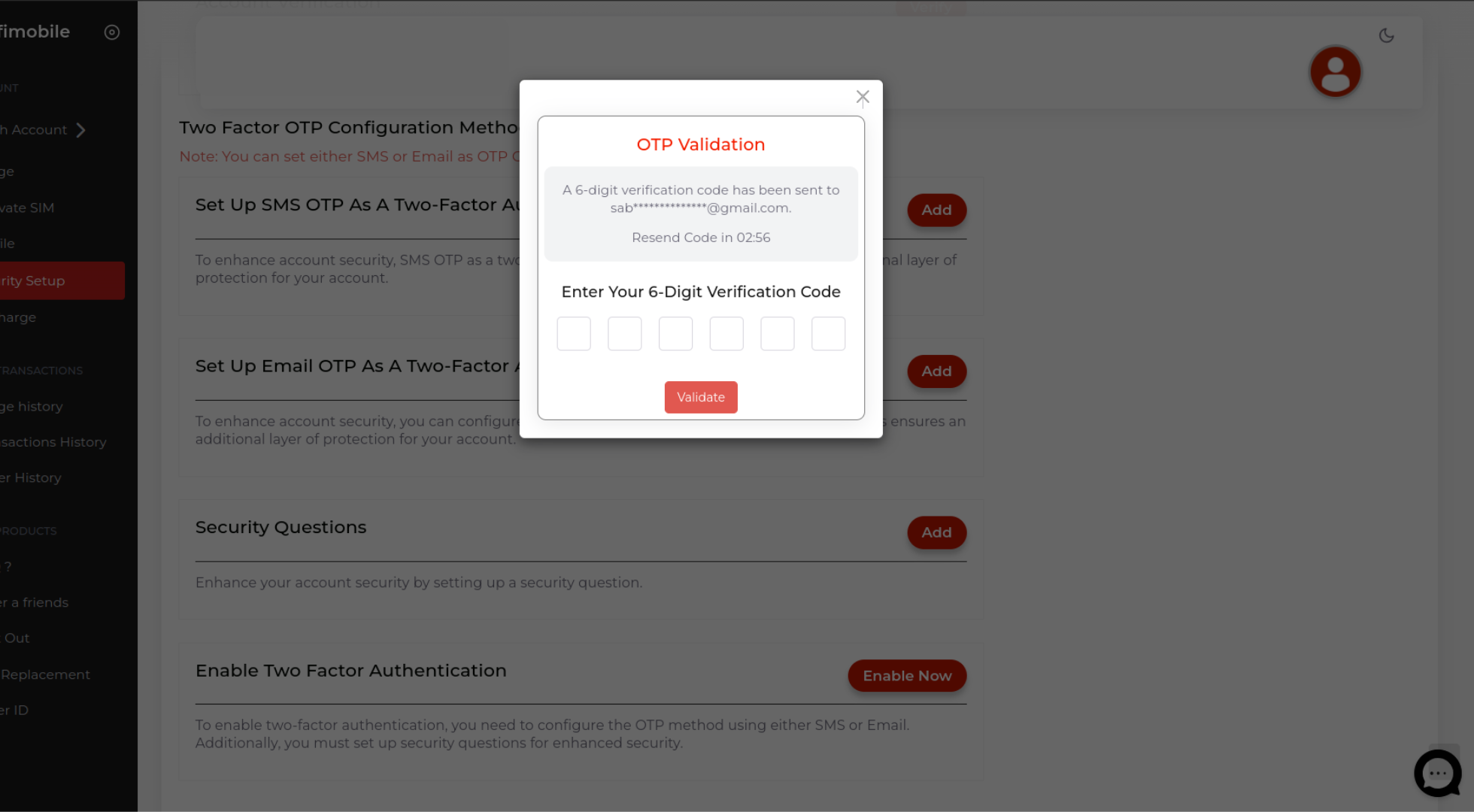
Set Up Email OTP as Two-Factor Authentication (2FA): Click "Verify," and an OTP will be sent to your registered email address.Then, enter the OTP to complete the process.
Security Questions: Click "Verify." A form will display three questions—provide answers to the required ones and click "Add Now" to save them.
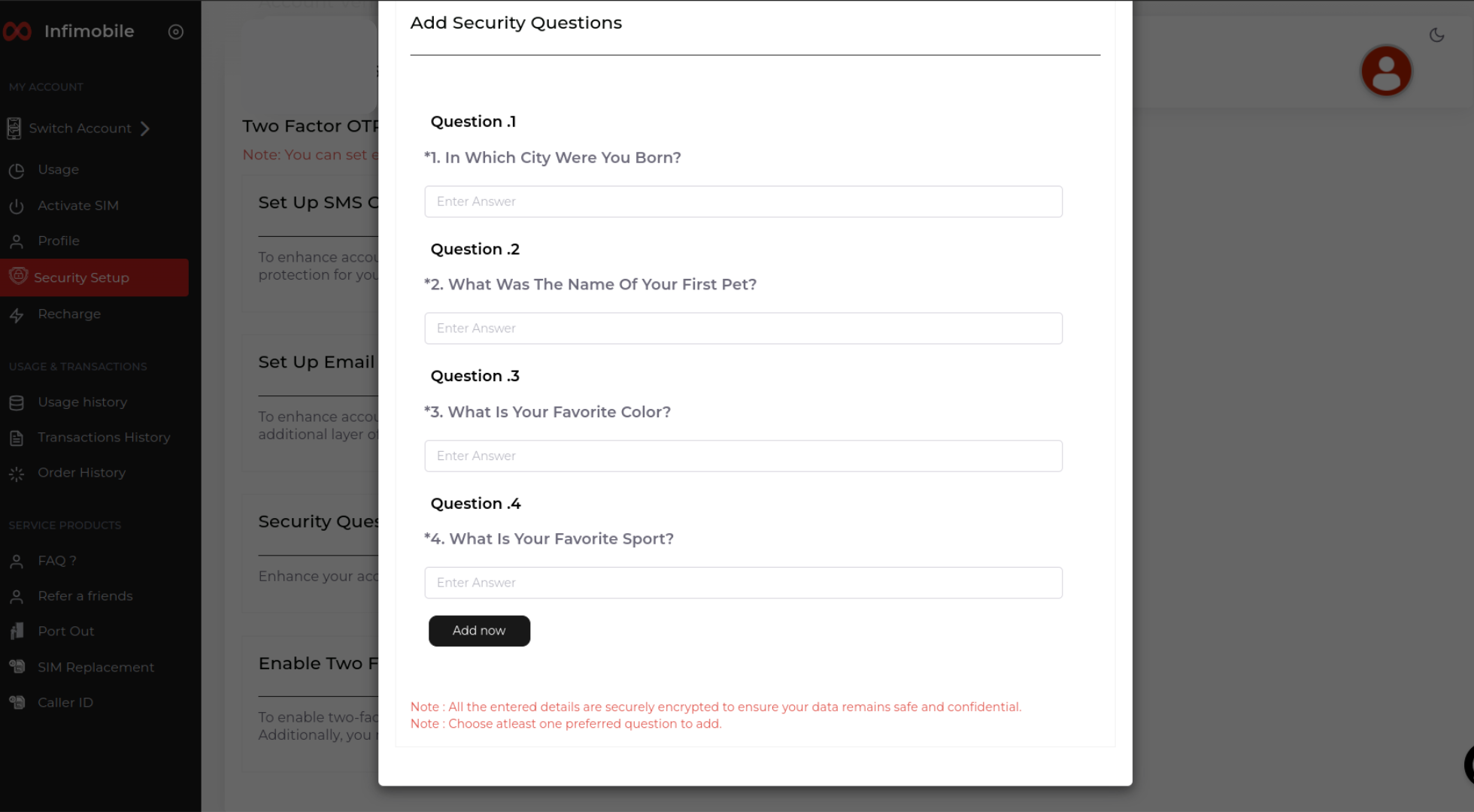
Our security questions serve as a "spoken method" of verification—your answers won’t be entered into online forms. Instead, you’ll share them via product support chat or a phone call. Because people will review your responses, you don’t need to match your answers word-for-word.
Two-factor authentication (2FA) can be set up with OTP using SMS or Email and security questions for extra protection.
After completing the above process, please click on Enable Two-Factor Authentication. Once you click on it, the 2FA setup will be completed. Please do not refresh the page while adding the SMS number, email address, and security questions.